 NetMute
How to see exactly where your Mac sends your data
Right now, apps on your Mac are sending data to servers you have never heard of: analytics, advertising, telemetry, sync. macOS gives you no way to see it. This guide shows how to watch every outbound connection in real time: which app, which company, which country.
- 1.macOS shows you how much data each app sends (Activity Monitor), but never where it goes. There is no built-in view of destinations.
- 2.Install a per-app connection monitor. NetMute's App X-Ray lists every outbound connection live, grouped by app, by company, and resolved to a country.
- 3.Watching is free and blocks nothing. You only decide what to cut off after you have seen what your Mac actually does. Walkthrough below.
What you cannot see right now
Your Mac is a busy switchboard
Wake a Mac from sleep and, within a minute, it opens dozens of connections. Some are obviously yours: Mail checking your inbox, the browser loading a page. Most are not: a note-taking app pinging an analytics endpoint, a creative tool calling its advertising partner, an updater quietly phoning home. None of this appears anywhere in System Settings.
Total bytes sent and received per process. A number. No hostnames, no companies, no countries, and no way to tell a backup from a tracker.
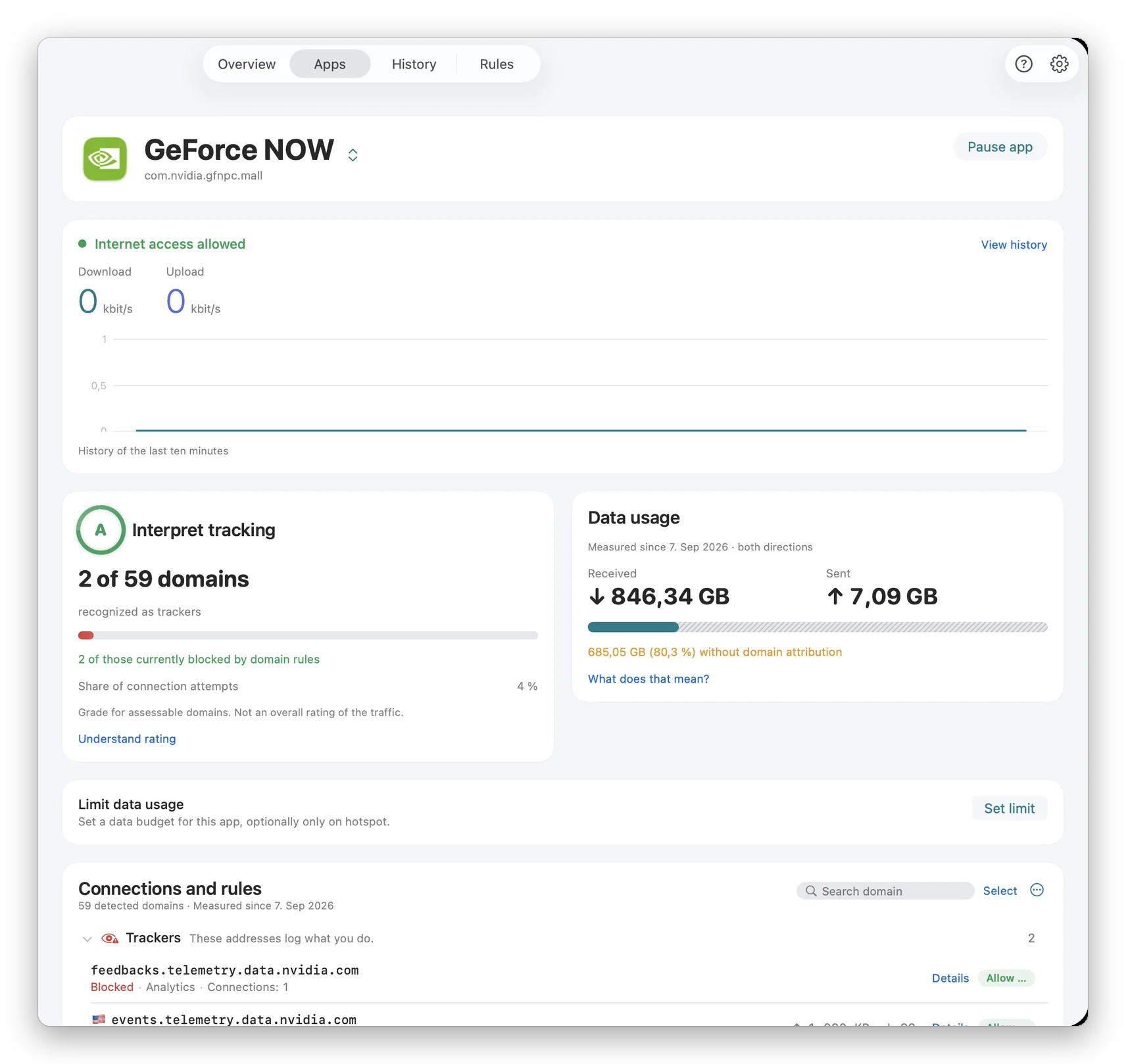
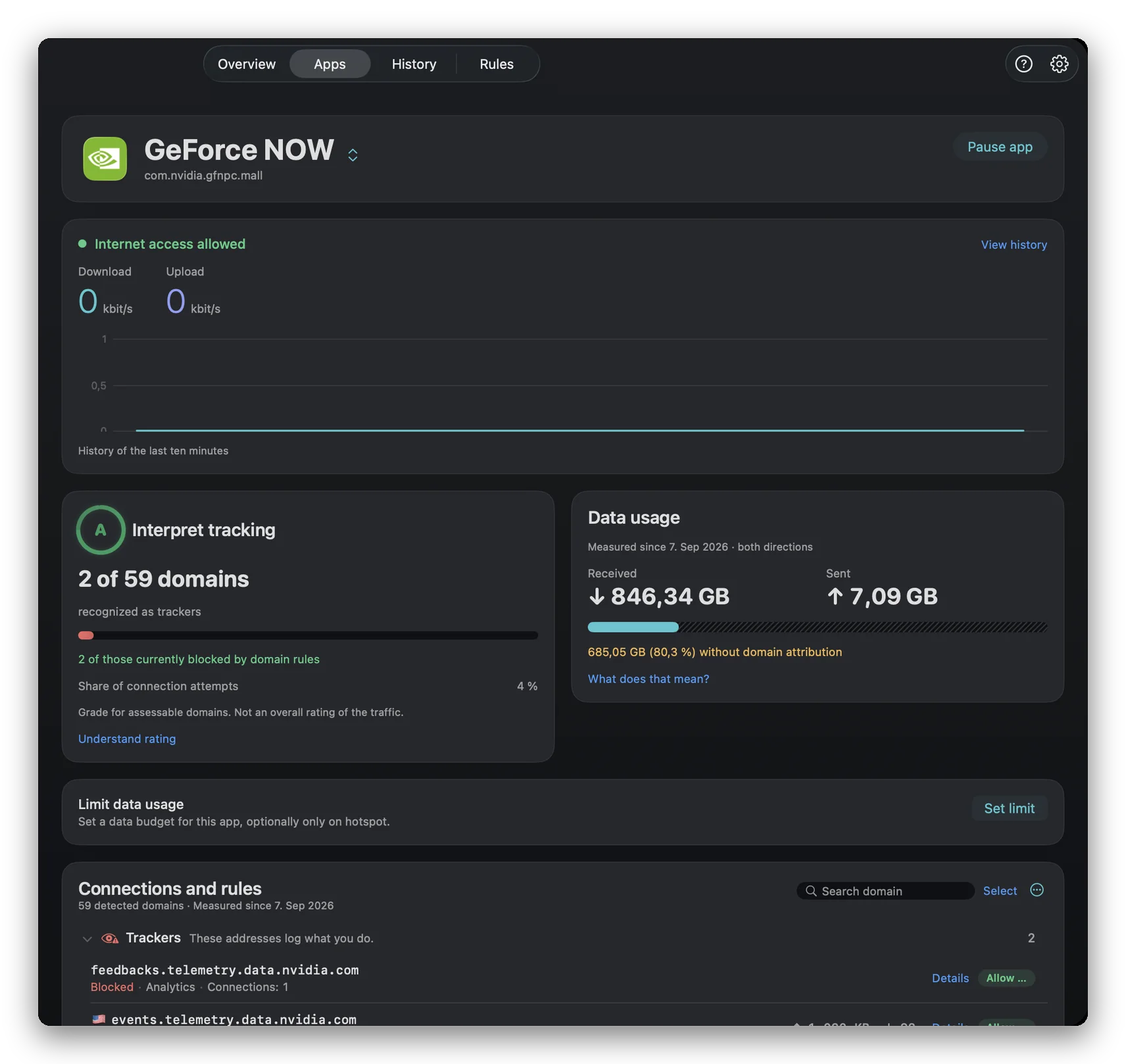
Which server each app is talking to, who owns it, what kind of service it is (ad, analytics, sync, telemetry) and where in the world it sits.
The walkthrough
See where your data goes, step by step
Two minutes from the Mac App Store to a live map of your Mac's connections. Nothing gets blocked: this is pure observation.
Install NetMute and open App X-Ray
Download from the Mac App Store and approve the network extension once (Touch ID or password). NetMute starts watching immediately without blocking anything. Open App X-Ray and every app appears with the destinations it has contacted, grouped into categories: advertising, analytics, telemetry, sync, license.
Read the Reports: companies, not just hostnames
Raw hostnames are noise. The Reports view rolls them up to the company behind them, so graph.facebook.comand a dozen other domains collapse into "Meta," and you can see at a glance which trackers show up most across all your apps.
- Sorted by frequency, so the busiest trackers surface first.
- Matched against a database of 584 tracker domains across 161 companies.
See which countries your data reaches
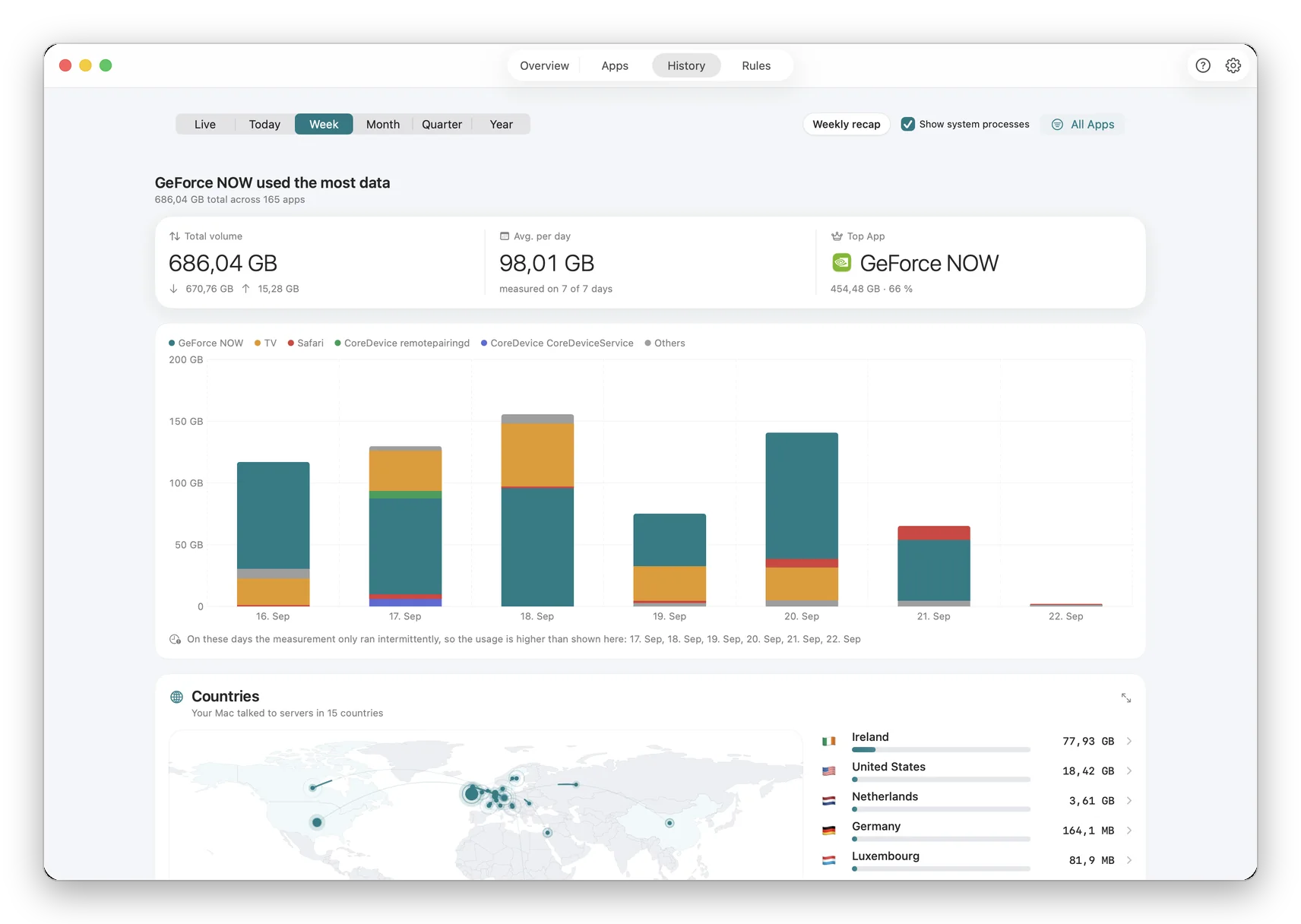
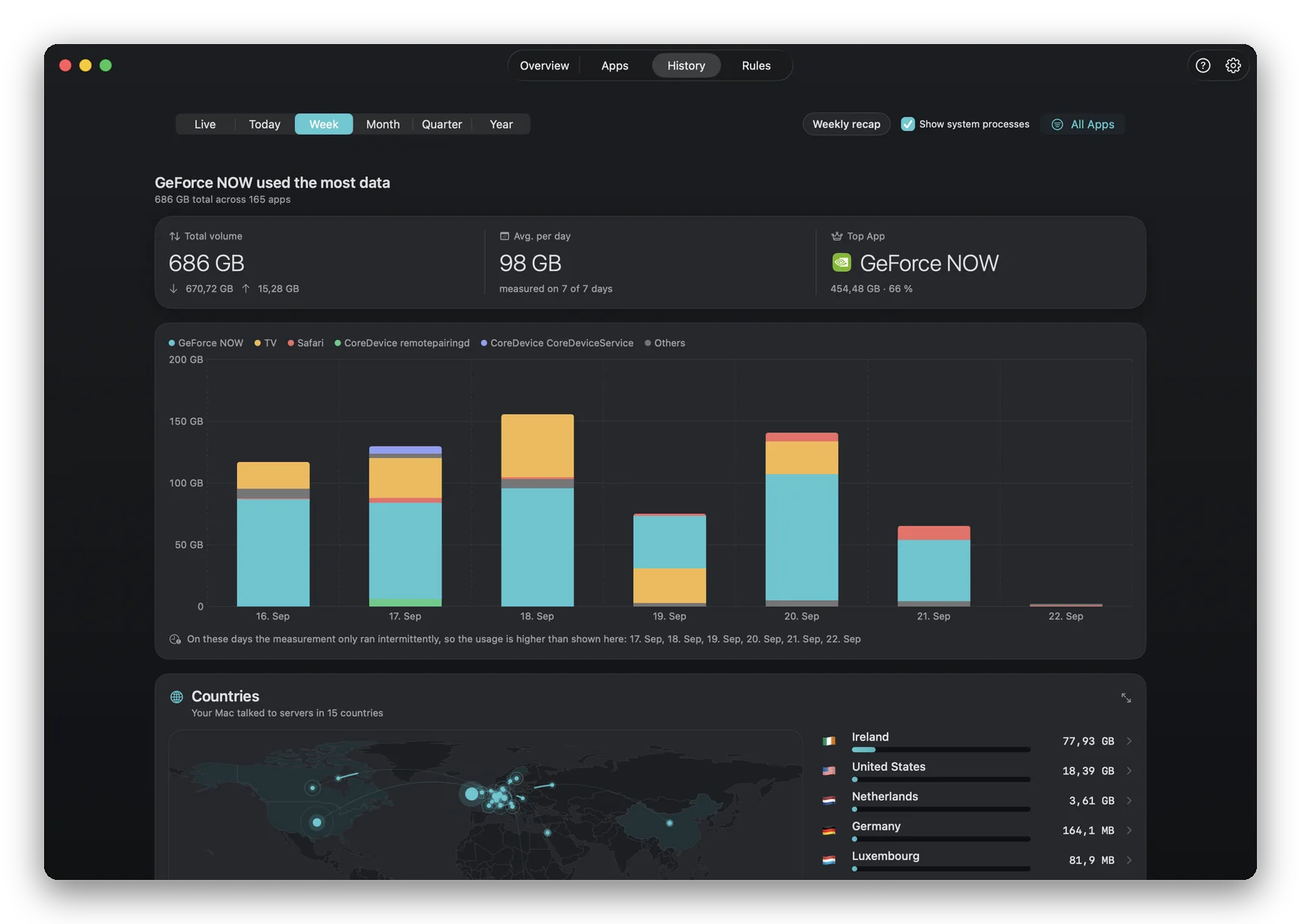
Each destination resolves to a server location, so you can see the physical geography of your data: which apps reach servers in the US, the EU, Singapore or further afield. It is the clearest way to turn an abstract privacy worry into something you can actually look at, and then act on.
See it on your own Mac
Free on the Mac App Store. Watch every connection live, with no account, no kernel extension and no subscription.
From seeing to deciding
Once you can see it, you can stop it
Seeing where your data goes is the first half. The moment a destination looks wrong, say an offline notes app talking to an ad network or a creative tool calling six analytics companies, you can cut it off. NetMute's free tier blocks a whole app from the network; Premium (one-time, no subscription) blocks individual destinations so you keep the app working while silencing only its trackers.
FAQ
Questions that actually come up
Can I see where my Mac is sending data?
Not with the built-in tools: macOS has no view that shows, per app, which servers it contacts. Activity Monitor shows total bytes sent and received, but not the destinations. To see the actual servers, companies and countries your apps talk to, you need a per-app connection monitor. NetMute's App X-Ray does exactly this: it lists every outbound connection live, grouped by the app that made it and the kind of service on the other end.
Does this show what is inside the data, or just where it goes?
Just where it goes: the metadata. NetMute sees which app made a connection, which hostname it reached, when, and how many bytes moved. It does not (and cannot) read the contents of HTTPS-encrypted traffic, and it deliberately never installs a root certificate to try. The destination metadata is what tells you the story: an app quietly talking to a dozen advertising and analytics domains is visible even though the payload stays encrypted.
Which countries does my Mac connect to?
More than most people expect. A typical Mac contacts servers in the US, Ireland, Germany, Singapore and a handful of others within minutes of waking up: Apple services, app back-ends, CDNs and third-party trackers. NetMute resolves each destination to its server location so you can see the map of where your data physically goes, and which app is responsible for each hop.
Will watching connections slow my Mac down?
No. NetMute observes traffic through the macOS NetworkExtension framework, the same lightweight hook the system firewall uses. There is no proxy tunnel and no extra encryption layer, so day-to-day CPU stays below 1% on Apple Silicon. Observation runs continuously in the background without a noticeable battery or speed cost.
Do I have to block anything to see the connections?
No. NetMute starts in observation mode and blocks nothing until you decide to. You can run it purely as a monitor for as long as you like: watch what your apps do, then act only on what surprises you. Blocking a destination or an entire app is one toggle away once you have seen enough.
Does seeing this require root, a kernel extension or disabling SIP?
No. NetMute uses Apple's sanctioned NetworkExtension API. You approve it once at install with Touch ID or your password, and it runs as a sandboxed, low-privilege process. No terminal commands, no kexts, no SIP changes.
What does it cost to monitor where my data goes?
Monitoring is free. NetMute is free on the Mac App Store and the App X-Ray view, live connection list and country resolution are part of the free tier. Premium (a one-time purchase, no subscription) adds per-destination blocking and the full tracker database; you do not need it just to see where your data goes.
What is the minimum macOS version?
macOS 26 (Tahoe) or later, on Apple Silicon or Intel. The content-filter APIs that App X-Ray relies on shipped with macOS 26.
Watch where your data goes
Free on the Mac App Store. macOS 26 (Tahoe) or later. Live App X-Ray, company-level Reports and server-location resolution, with no account and no subscription.
Get NetMute on the Mac App Store