 NetMute
How to make your Mac's internet faster on a shared connection
On a train, a phone hotspot or hotel Wi-Fi, your bandwidth is tiny and shared, and your Mac spends it on cloud sync, updates, backups and telemetry running in the background. Cut those off per app and everything you are actually doing gets faster.
- 1.Slow shared Wi-Fi is rarely the Wi-Fi, it is background apps (cloud sync, updaters, backups) eating a connection that is already small.
- 2.Block those apps from the network per app with one toggle. The foreground work you care about gets the whole pipe.
- 3.With Network Profiles it happens automatically: block the hogs the moment you join a hotspot, restore everything at home. Walkthrough below.
Why the train Wi-Fi crawls
It is contention, not signal
A coach full of commuters shares one slow uplink; a phone hotspot gives you a sliver of a cellular connection. Your Mac does not know it is on a tiny pipe, so it keeps doing everything it does at home. iCloud finishes uploading last night's photos. Dropbox syncs a folder. macOS pulls a 4 GB update in the background. A backup kicks off. Each one is invisible, and together they starve the page you are trying to load.
iCloud Drive & Photos, Dropbox / Google Drive / OneDrive, online backups, the App Store and app self-updaters, macOS software updates, telemetry uploads.
Your browser, mail, the messaging app, maps, the video call. The handful of things you are using right now, and nothing else.
macOS has a "Low Data Mode" per network, but it only asks apps to be polite, and it does not actually stop them, and many ignore it. A per-app firewall enforces the cut-off instead of requesting it.
The walkthrough
Make a shared connection fast, step by step
Two minutes to set up once; after that a single profile does it automatically every trip.
See who is actually using the connection
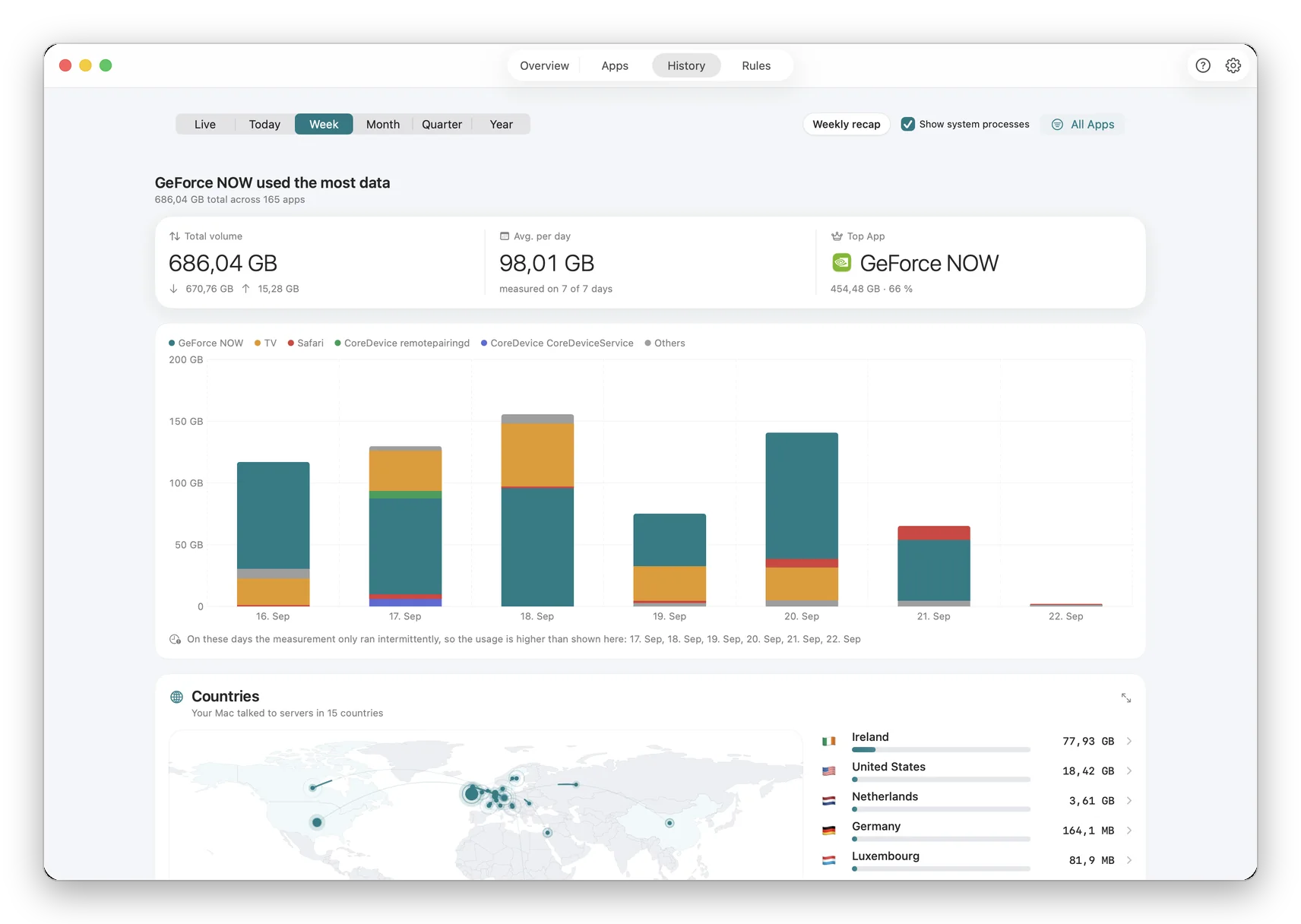
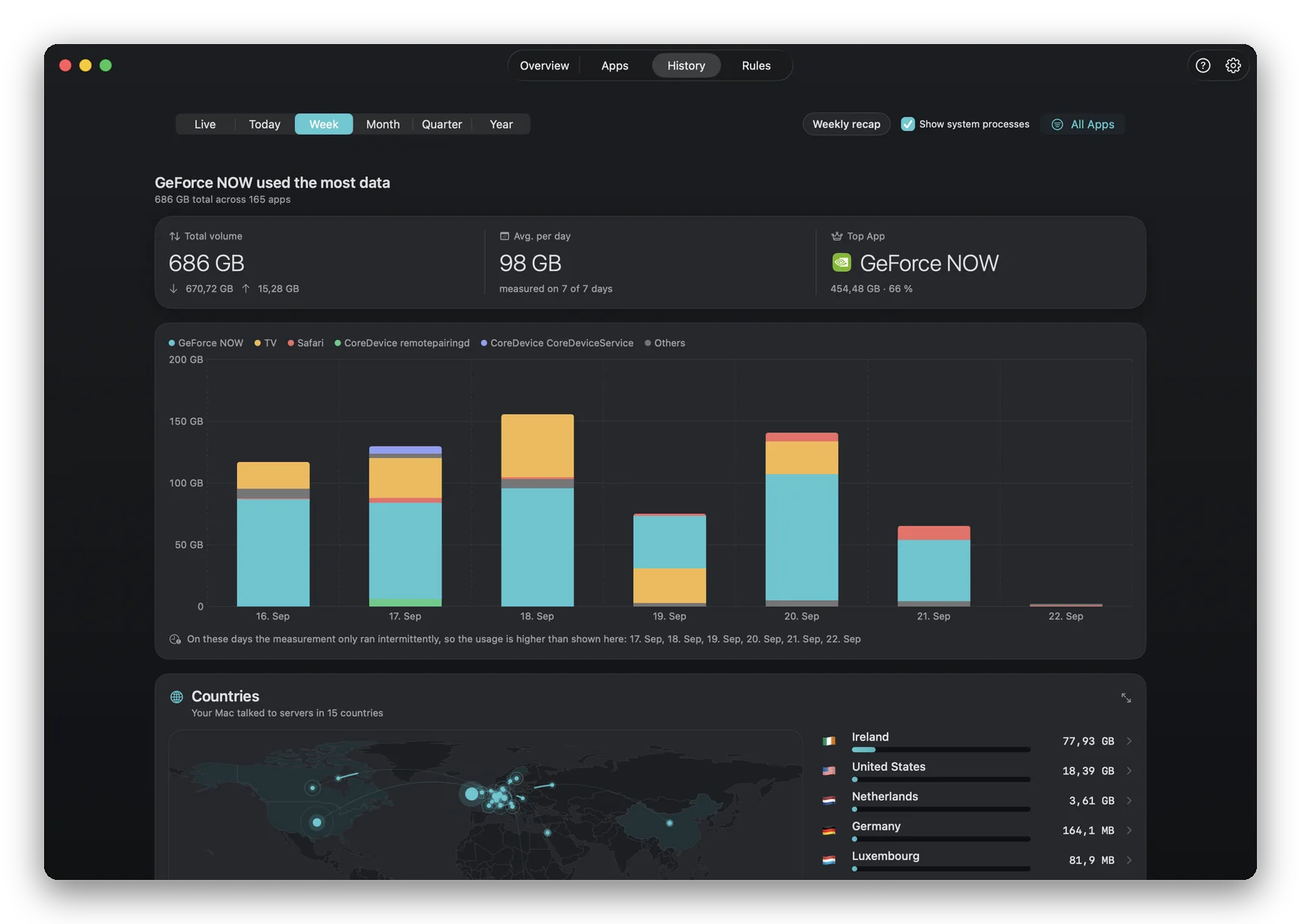
Install NetMute from the Mac App Store and approve the network extension once. The Reports view shows live byte counts per app, so the hogs are obvious: the app sending hundreds of megabytes in the background is your problem, not the browser tab you are staring at.
Switch off the hogs, or cap them
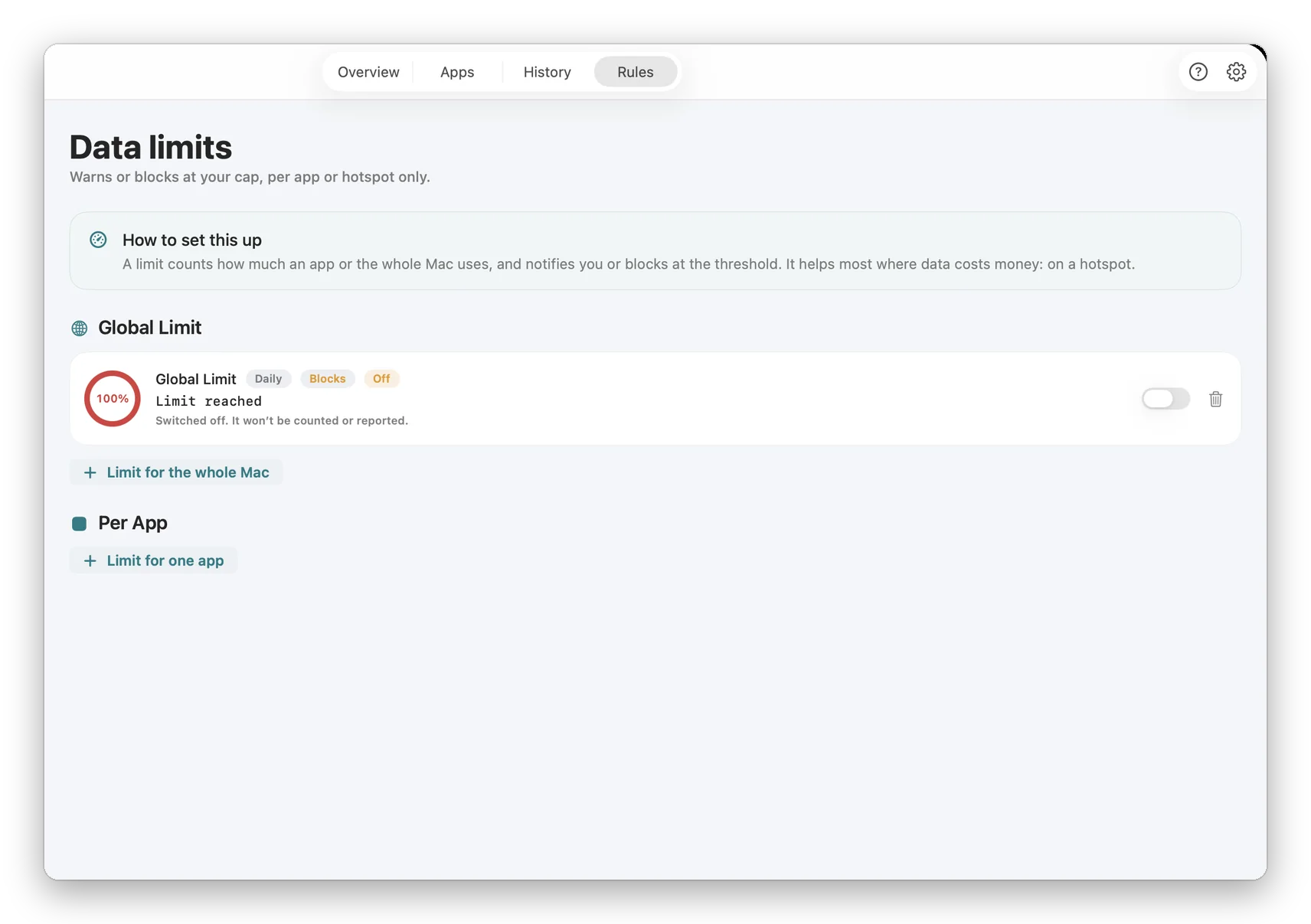
Flip the per-app toggle on cloud sync, updaters and backups. The bandwidth they were eating goes straight to your foreground apps, and the effect is immediate. For apps you want to throttle rather than kill, set a Data Limit so they are cut off automatically after a few megabytes.
- One toggle per app, enforced instantly.
- Blocked apps resume and catch up the moment you allow them again.
Make it automatic with a Network Profile
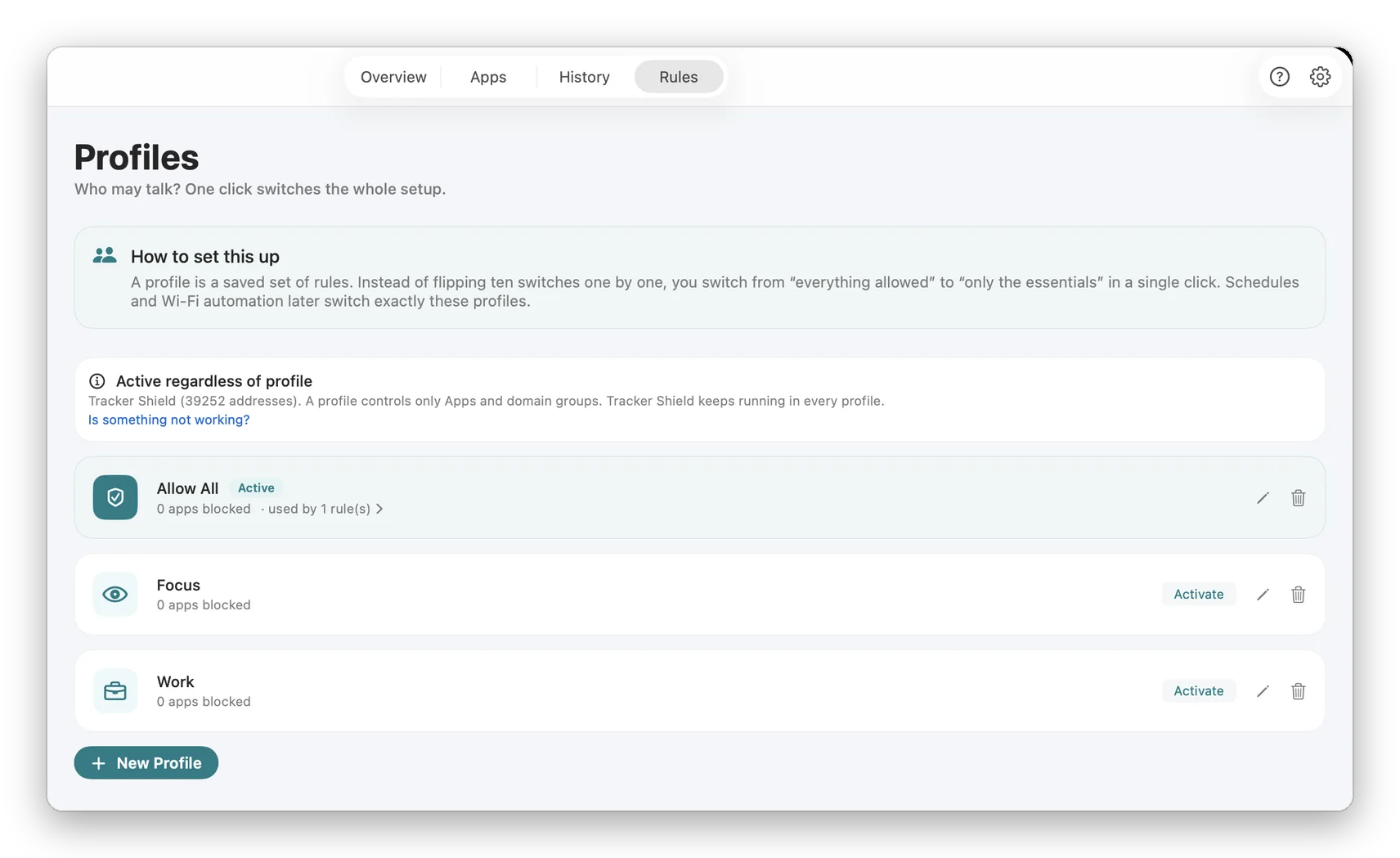
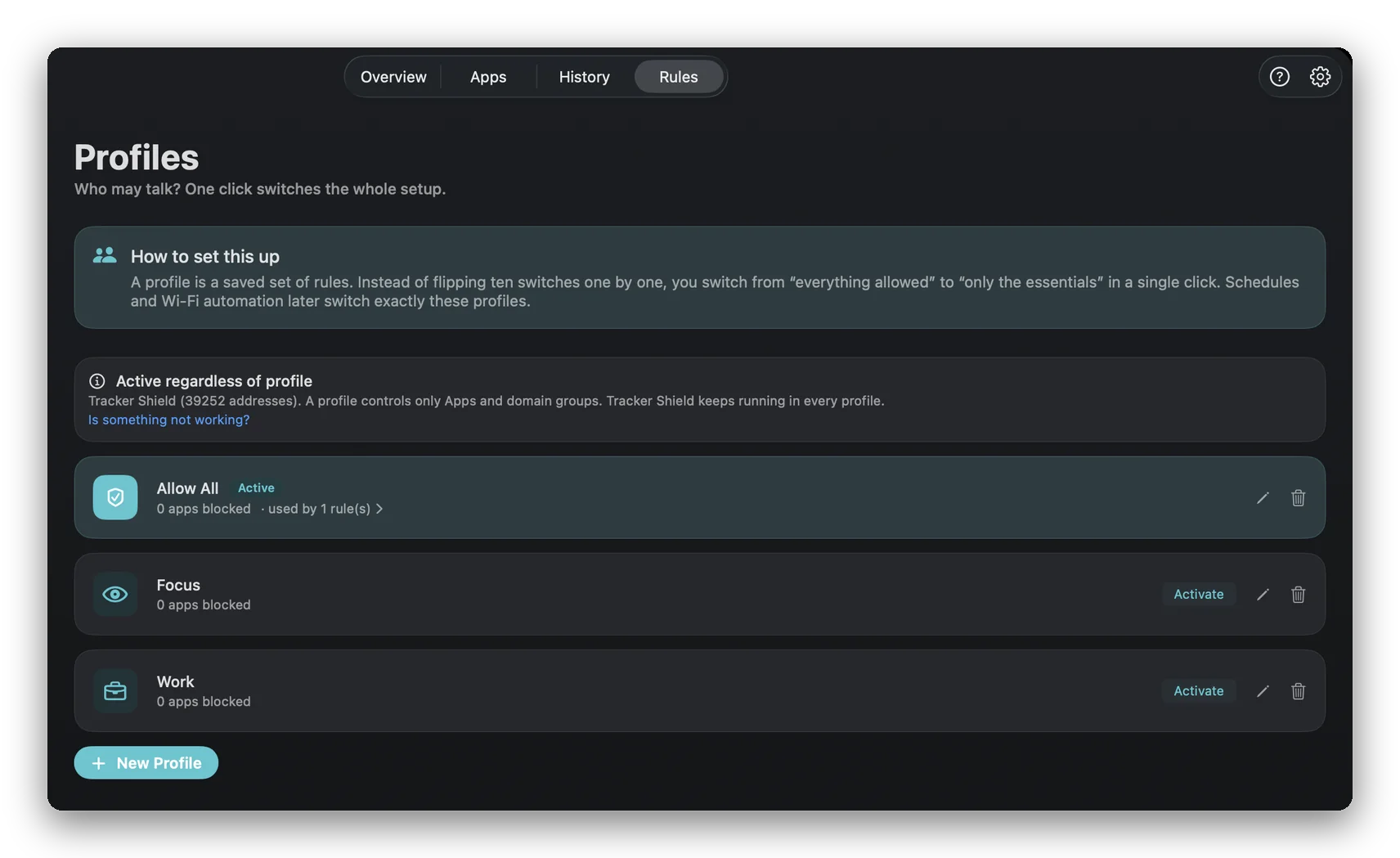
Doing this by hand every trip gets old. Save your blocked-list as a Network Profiletied to the hotspot or train network. NetMute applies it the moment you connect and switches back to your normal rules at home, so "travel mode" is automatic from then on.
Faster Wi-Fi on your next trip
Free on the Mac App Store. Per-app blocking, data limits and auto network profiles, with no account and no subscription.
A starting point
What to block on a metered connection
| Block while travelling | Keep online |
|---|---|
|
|
A starting point, not a rule: NetMute's live byte counts tell you which apps are actually heavy on your connection so you can adjust.
FAQ
Questions that actually come up
Does blocking apps actually make my internet faster?
On a shared or limited connection, yes, noticeably. Train Wi-Fi, a phone hotspot or hotel internet gives you a small, contended slice of bandwidth. When cloud sync, a system update, a backup and a few telemetry uploads all run at once, your foreground work (the page you are loading, the call you are on) has to fight them for that slice. Cut the background apps off and the bandwidth is suddenly all yours. On a fast home connection the effect is small; on a metered or weak one it is the difference between usable and unusable.
Which apps should I block on a train or hotspot?
The bandwidth hogs that do not need to run right now: cloud sync (iCloud Drive, Dropbox, Google Drive, OneDrive), photo and video upload, online backups (Backblaze, Carbonite), the App Store and app self-updaters, and chatty telemetry. Keep the things you are actually using: your browser, mail, messaging, maps, video call. NetMute shows you, in bytes, exactly who is using the connection so you do not have to guess.
Is this the same as TripMode?
The outcome overlaps: both let you stop apps from using a metered connection. TripMode is the long-standing, single-purpose data-saver and does that one job cleanly. NetMute approaches it from the firewall side: the same per-app on/off control, plus it shows where each app sends data and blocks trackers, and Premium adds per-destination rules. If all you want is a metered-network toggle, TripMode is great; if you also want to see and block where your data goes, NetMute covers both. See the honest comparison linked below.
Will blocking an app break it?
No. A blocked app keeps running and works with whatever is already local, it just cannot reach the network until you allow it again. Cloud sync simply resumes and catches up the moment you are back on a fast connection (or you flip the toggle). Nothing is lost; the upload waits.
Can it switch automatically when I join a hotspot?
Yes. Network Profiles let you attach a set of rules to a specific network. Create a 'Travel' or 'Hotspot' profile that blocks the background hogs, and NetMute applies it automatically when you join that network and restores your normal rules when you are back home, with no toggling by hand each trip.
Does this also cut my mobile data usage?
Yes, it is the same mechanism. The background uploads and downloads that slow a hotspot are also what burns through a data cap. Blocking them per app saves data as a side effect, and Data Limits can cap how much a given app is allowed to use before it is cut off automatically.
What does it cost, and which macOS?
NetMute is free on the Mac App Store and the per-app blocking that makes a shared connection fast is in the free tier. Premium (a one-time purchase, no subscription) adds per-destination rules and the full tracker list. Requires macOS 26 (Tahoe) or later, Apple Silicon or Intel.
Get the bandwidth back
Free on the Mac App Store. macOS 26 (Tahoe) or later. Per-app blocking, data limits and automatic network profiles, with no account and no subscription.
Get NetMute on the Mac App Store