 NetMute
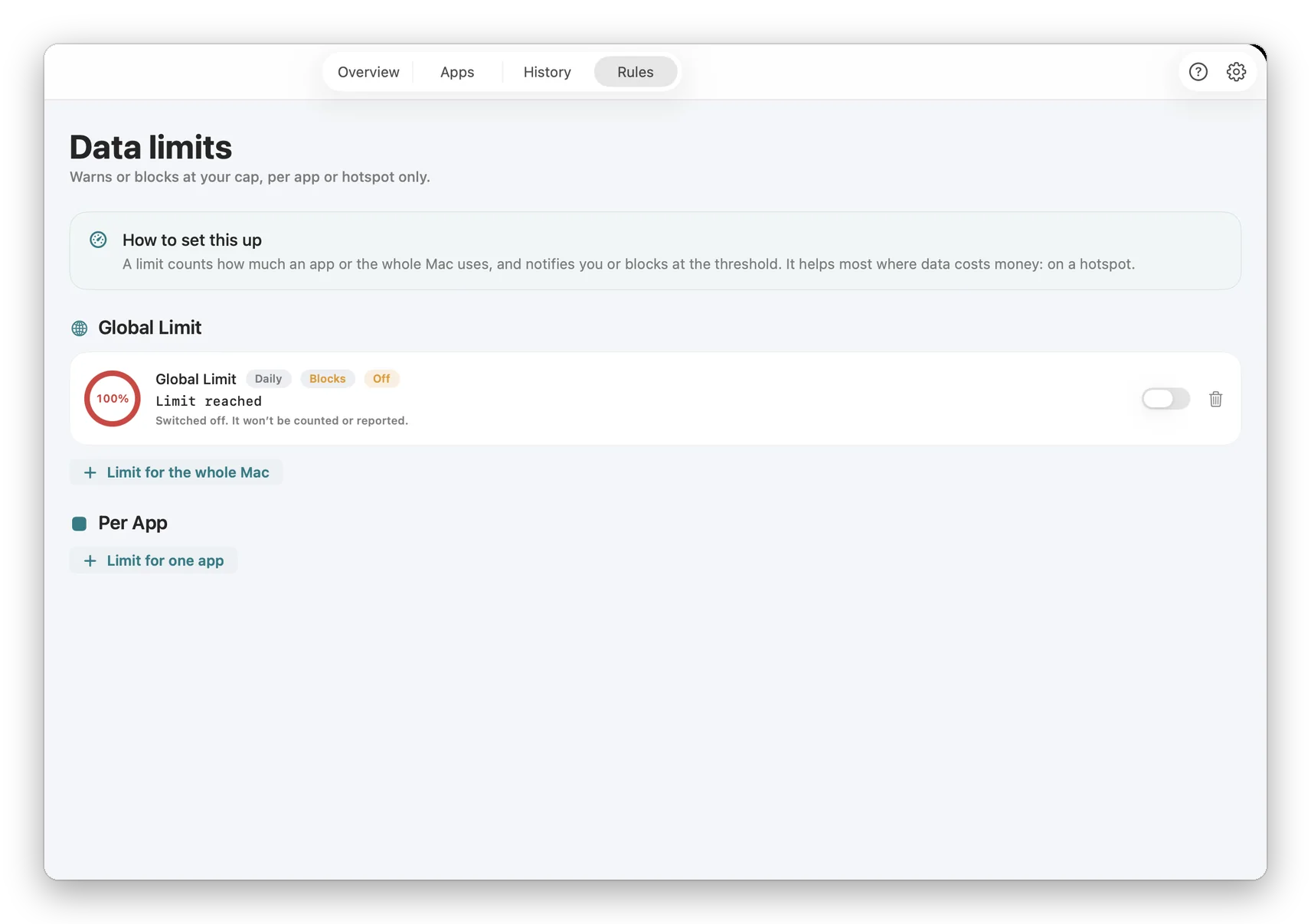
Stop apps that consume your data volume
When tethering or on a volume-limited connection, every megabyte counts. But apps don't know that. Dropbox happily syncs gigabytes. macOS downloads a 3GB update. Chrome tabs load content you never read. Data limits set hard caps per app: 'Dropbox max 500MB today' or 'Chrome gets 2GB this month.'
How data limits work
Pick an app or the whole Mac, a period (daily, monthly or once) and an amount. Choose where it counts: everywhere, only on the hotspot, or on one Wi-Fi. NetMute counts the data as it flows, warns you before the limit, and at 100% either notifies you or blocks the app, whichever you chose.
In three steps
1Set a cap
Per app or for the whole Mac, daily or monthly.
2Get a heads-up
A notification when the app reaches the threshold you chose, 80 percent for example.
3Blocked at 100 percent
At the limit, NetMute blocks the app's network access.

When data limits save your plan
Mobile hotspot with 10 GB a month: a limit for the whole Mac that counts only on the hotspot, plus caps for the heaviest apps. Abroad on roaming: strict limits for everything, generous ones only for the essentials. On a slow connection: cap the background apps so a sync cannot use up the day.
Why bandwidth control is more important than ever
Remote work means more tethering, hotel Wi-Fi, and locations with limited connectivity. Without data limits, a single background process can consume your data in hours. Data limits give you predictable control over your data use.
Key benefits
- Daily, monthly or one-time limits, per app or for the whole Mac
- Count everywhere, only on the hotspot, or only on one Wi-Fi
- At the limit: a notice only, or the app goes offline
- A warning before the limit is reached
- Reset the usage by hand at any time

